Getting Started
This chapter describes how to add the VSDX Export to your yFiles for HTML-based project.
The npm module file of the VSDX Export is in the lib directory.
The library is in ES module format and has several (npm) dependencies.
Therefore, we recommend that you manage the dependencies of your project with
npm or a compatible tool and use a bundler like
vite or webpack to deploy your application.
The Basic Demo, located in the demos/basic directory, implements the minimal setup with npm and vite that is
described in the following.
Installing the Modules
Extracted the VSDX Export package and add the library to your project with the following command:
npm install <path to vsdx-export-for-yfiles-for-html>/lib/vsdx-export-for-yfiles-for-html-3.1.1.tgzThis installs all third-party dependencies of the library, too.
yFiles for HTML is an npm peer dependency of the module since we don’t know where it is located on your system. This means that it’s not installed by the above command. Instead, install yFiles for HTML with the following command, if you haven’t added it to your project already.
npm install <path to yfiles-for-html>/lib/yfiles-31.0.2+dev.tgzIf you are new to yFiles for HTML, have a look at the Getting Started section in its Developer’s Guide.
AI-supported development
The VSDX Export provides the following resources to support AI-assisted software development:
-
An
AGENTS.mdfile containing instructions for working with the VSDX Export add-on and its package contents. -
An agent-friendly Markdown version of this guide, included in the npm archive in the
libfolder. After installation, the guide is available in thenode_modulesdirectory. -
Searchable TypeScript type declarations with detailed API documentation.
Adding the Export Code
Assuming you have your application with a GraphComponent already set up, you can now export its graph to a VSDX
diagram by adding this snippet to your code:
import { VsdxExport } from '@yfiles/vsdx-export'

const vsdxExport = new VsdxExport()
vsdxExport.writeBlob(graphComponent /* your GraphComponent */).then(blob => {
  // Now, save the blob to a *.vsdx file
})This generates a Blob of the VSDX diagram. To save it as a
file, copy the use the saveBlob utility function from demos/resources/save-blob.ts, or use a
third-party file saving library:
import { VsdxExport } from '@yfiles/vsdx-export'
import saveBlob from '@yfiles/demo-utils/save-blob'

const vsdxExport = new VsdxExport()
vsdxExport.writeBlob(graphComponent /* your GraphComponent */).then(blob => {
  saveBlob(blob, 'yfiles-diagram.vsdx')
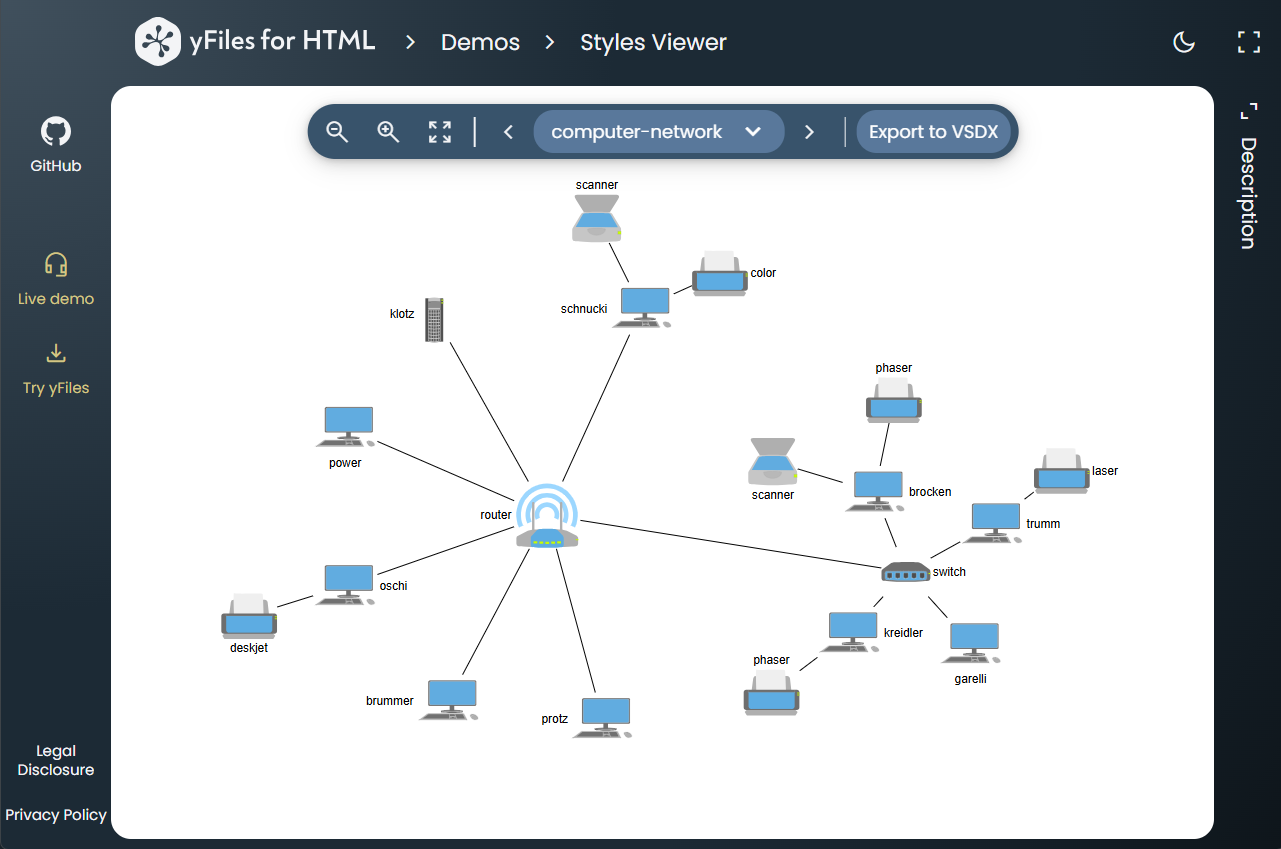
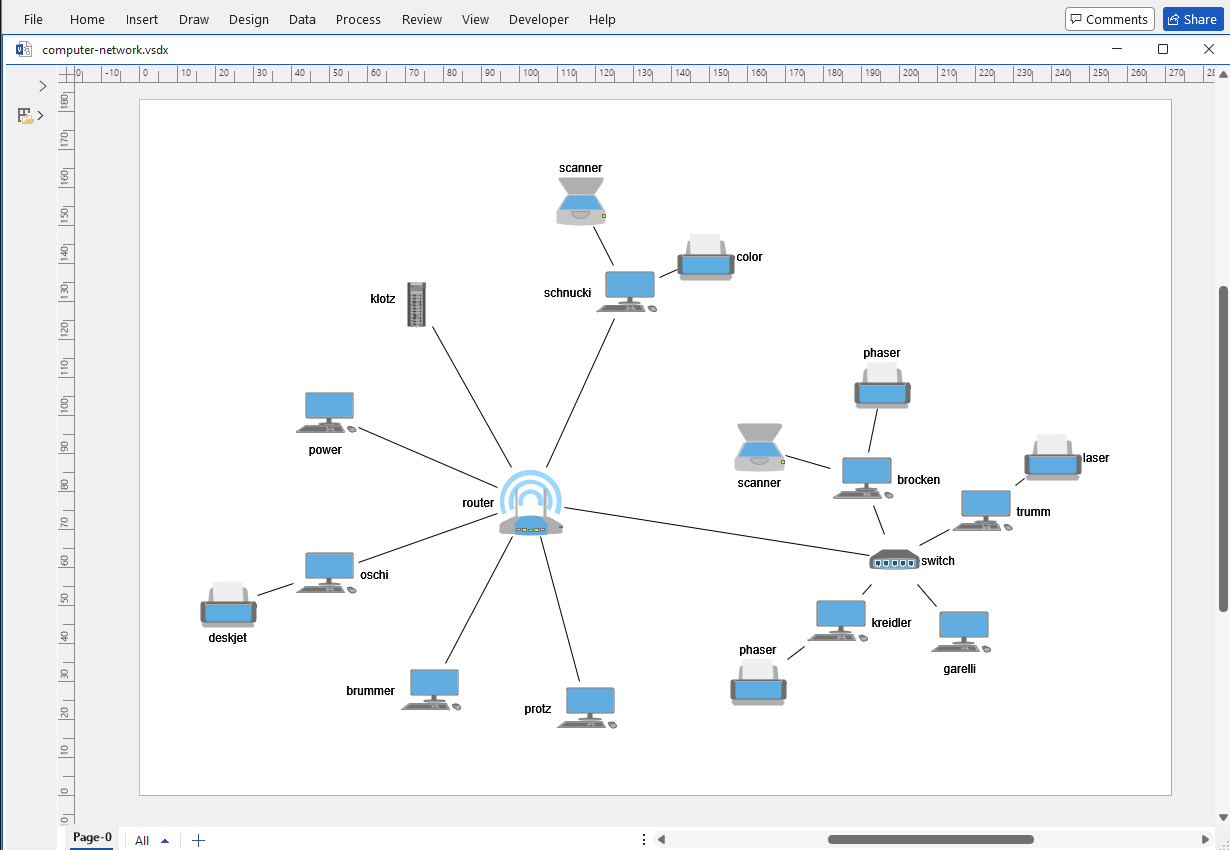
})For many use cases, the VSDX export doesn’t require a specific configuration, thus the exported diagram looks in your
VSDX viewer exactly like the graph in the GraphComponent:
|
Note
|
While the API of the VsdxExport class is sufficient for many use cases, some requirements need more flexibility. The VsdxIO class provides methods that allow to control the exact diagram position, render multiple diagrams into a single VSDX file, add diagrams to existing VSDX files, and programmatically add other content. |